StoryLedger · a continuity app for Windows
Every thread accounted for.
StoryLedger keeps track of everything your readers will notice: who has which eye missing, what day the storm fell on, which clue you planted in chapter two and never paid off. You can write the book in it too, with those records open beside the page. Built by a novelist, for anyone who has to keep a story straight — whether you write a series, standalones that share a cast, or you are the editor holding the author to what they wrote in chapter two.
Windows 10 & 11 · 30 days free, every feature · works offline · no AI · no account needed
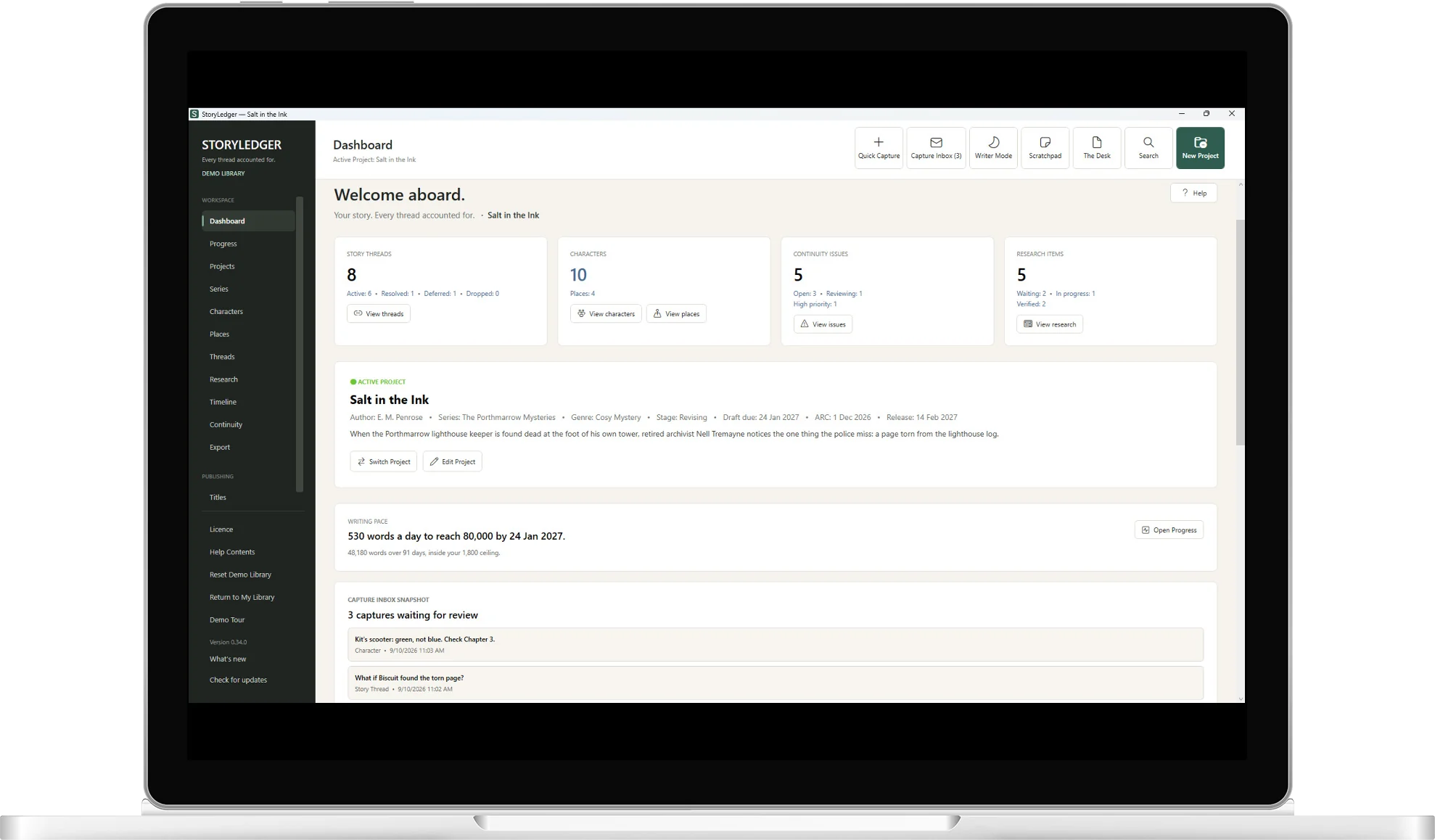
New · The Desk
Now the book lives here too.
The Desk is a place to write, inside StoryLedger. Chapters and scenes down the left, the page in the middle, and the records you have already made open beside it. The app that knows your story bible is the one that ought to be open while you write.
Your records, beside the page
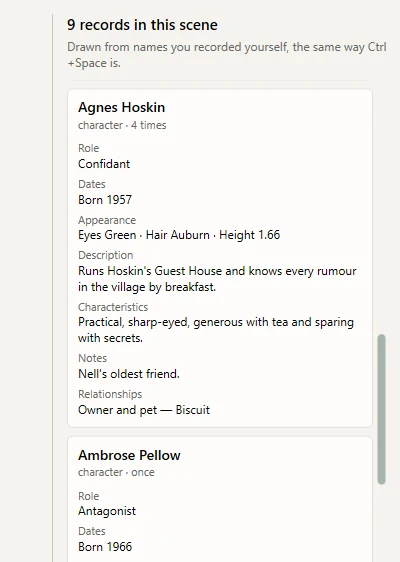
As you write, StoryLedger recognises the names you have recorded and opens their records next to you: the character’s age, her green eyes and who she is estranged from, the lighthouse and its hundred and twelve steps, the date the storm fell on. Press Ctrl+Space and it will type one for you, spelled the way you recorded it.
Underneath them it lists any capitalised name that is in no record of yours — the character who has been in three chapters and never made it onto a card.
It reads the page; it does not write to your library. Nothing in your project changes unless you ask it to, and then only the one record you asked for.
Make the words as large as you need them
The page zooms from 50% to 400% — with Ctrl and the plus or minus keys, Ctrl and the mouse wheel, or the control at the foot of the window. Ctrl+0 puts it back to normal.
It reflows rather than magnifies. The page grows with the words, so at 300% you are still reading a page with a sensible line on it — not a column three words wide, and nothing to scroll sideways to reach the end of a sentence. Set it once and it is waiting for you the next time you open the Desk, in this book and in every other one.
It changes how large the words are drawn and nothing else. Not your manuscript, not its formatting, not how it is saved, and not the file that comes out of Export to Word. A book written at 300% exports exactly as a book written at 100%.
Most software treats text size as a preference. For some writers it is the difference between writing and not writing.
- One check, four things. Spelling against the Windows dictionary in the English you chose for the book, the house style you picked, the words on your own style sheet, and names in the prose that are on no record. Chapter four says sideboard; your word is credenza. A dictionary does not know your cast, so an underlined word is one right-click from suggestions, from Ignore, or from Remember for this book — Eilidh is not a typo. Nothing is ever changed for you, and when there is nothing to report it says so.
- Daylight and Lamplight. Dark ink on a white page, or pale cream on a deep green one for the hours when the screen is the brightest thing in the room.
- Full screen. F11, or the button. The toolbars, the chapter list and the records panel go, and the page takes the whole screen; Escape brings it all back exactly as it was. The spelling, style and name checks keep running the whole time — this is not a mode that switches your tools off to clear your view.
- Find inside the scene. Ctrl+F opens a strip above the page: contains, whole word, starts with, ends with, or a regular expression, with every match marked and a count of where you are. It will find a paragraph break, a tab or a double space — the things in your manuscript that are not words. Replace one, or replace all.
- Export to Word. The finished manuscript as a .docx, your chapters as Heading 1 and your scenes as Heading 2. Private scene summaries, statuses and anything you marked to check stay behind.
- Already a few chapters in? Point Preview structure at a .docx and it shows you what StoryLedger makes of it — which headings are chapters, which are scenes, what it cannot place — before anything is imported. Your file is opened read-only and never changed.
- Every word of it stays on your computer. Nothing you write is uploaded, and the Desk needs no connection.
See it working
Five minutes, start to finish.
A new book, the cast and their roles, a continuity slip found and fixed, and capturing research without stopping writing.
Filmed before the Desk arrived, so the writing side is not in it. Everything else is.
Why it exists
Readers keep the notes you forgot to.
A character’s eyes change colour between books. A pub gets renamed halfway through. Someone knows about the letter three chapters before anyone told them.
Continuity slips were a recurring note in reviews of my own books. I write two series with casts that carry across every title, and no spreadsheet or note-taking app was built for that job. So I built one. StoryLedger is the story bible I needed on my desk, with one feature at its centre: a proper ledger of every continuity problem, from the moment you spot it until it is fixed.
— Iwan Ross, novelist and founder of BlurbCraft Studio
What I did not expect
You stop carrying the list.
I built StoryLedger to catch mistakes. What surprised me was what it did to the writing itself.
Scenes come easier now, and it took me a while to work out why. It is not that the app does any of the writing — it never has and never will. It is that I am no longer holding everything in my head. That low, nagging sense of having forgotten something, some detail established three books ago that I am about to contradict, is simply gone. It is written down somewhere I trust.
My wife noticed before I did. We watch a series in the evening and I stay in the chair now. I used to get up halfway through and go to my desk, because something had surfaced and I did not dare let it go until it was written down. These days it can wait. It is already in the ledger, or it is ten seconds away in Quick Capture, and then it is not mine to carry any more.
That is what this is really for. Not only the slips it catches — though it catches them. The part of your attention you get back.
“Where were you when I started writing?”
“I love the concept. You’ve done an amazing amount of work — if I was wearing one, I’d take my hat off to you.”
“Genius. Were you a software developer in a past life?”
Crime fiction with an Australian coastal heart
“I’m getting to grips with the different elements but it’s not difficult.”
“So far I’m finding it very useful. Finding it easy to use.”
British detective fiction, beginning with The Long Game
The heart of it
A continuity ledger, not a sticky note.
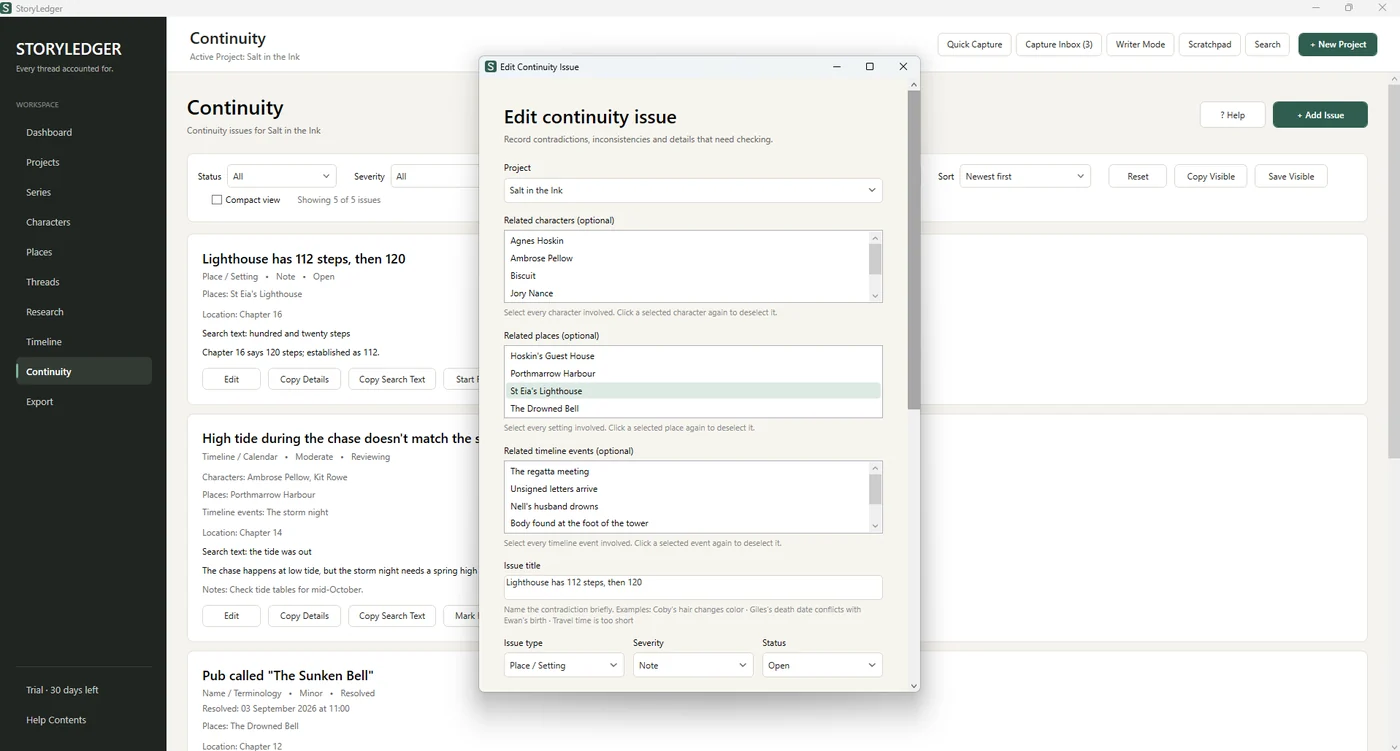
Log every contradiction the moment you spot it, whether that is while drafting, during a revision pass or from an editor’s comment. Give it a severity, link the characters, places and timeline events involved, and work it through until it is resolved.
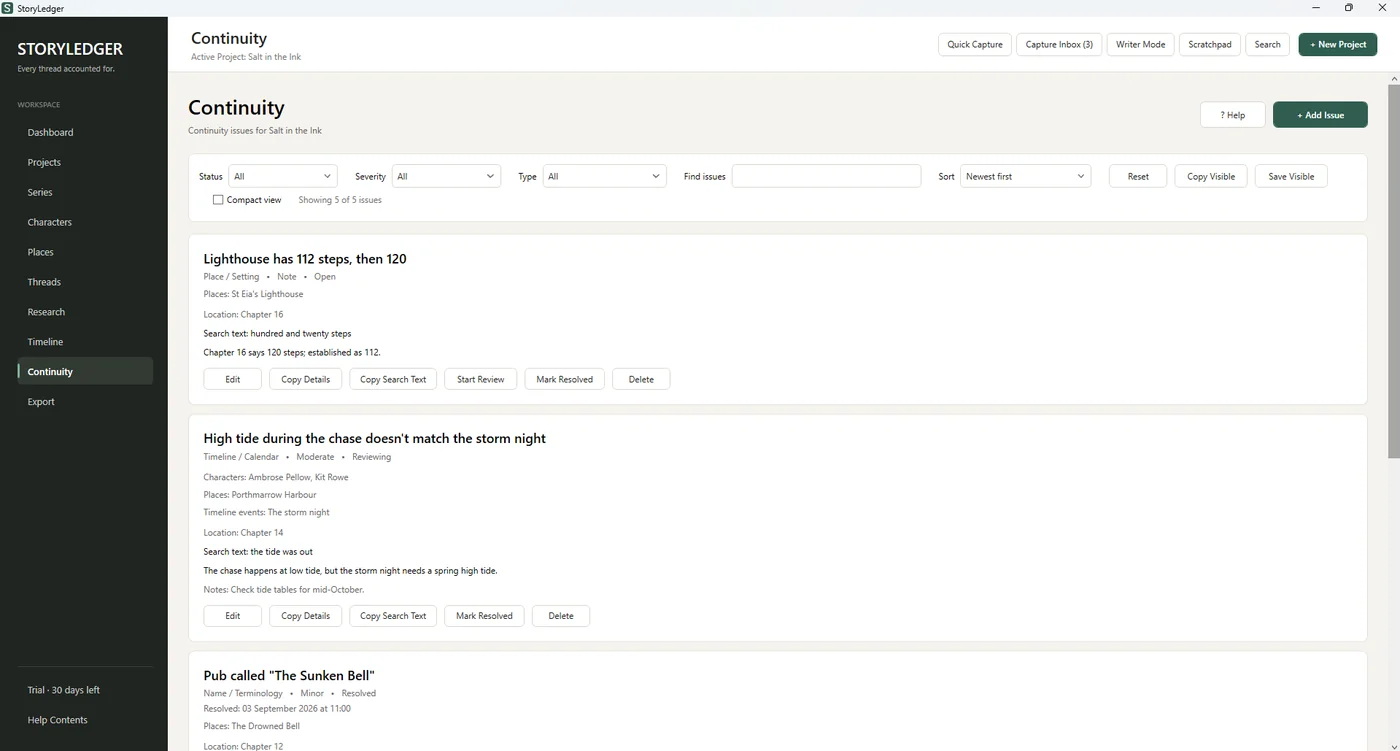
- Nine issue types, from timeline and calendar slips to knowledge leaks and renamed places
- Severity from Note to Critical; status from Open through Reviewing to Resolved
- A search phrase for each issue, copied with one click, so you can find the passage in Scrivener or Word instantly
- Filter, sort and export the open list as a checklist for your next revision pass
Your whole story bible
One place for every fact your book depends on.
Characters and relationships
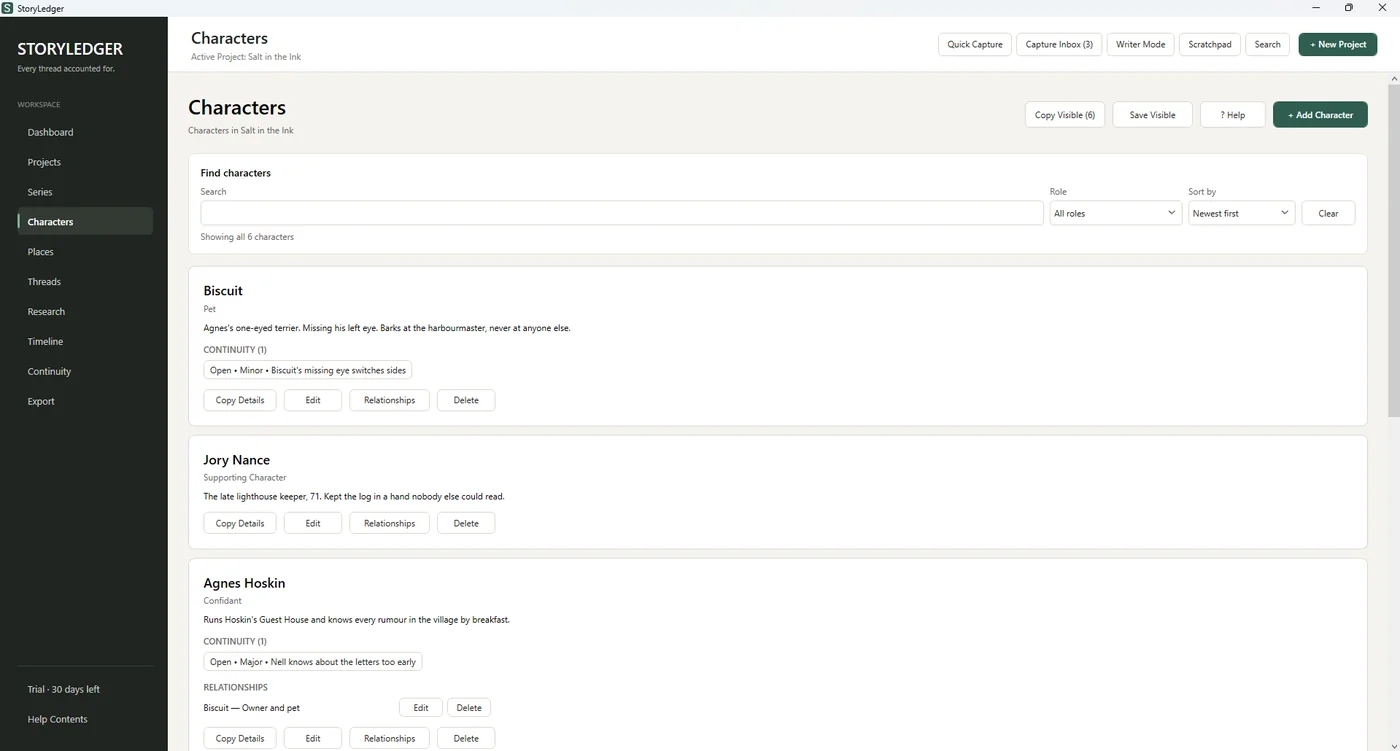
Your character bible: roles, descriptions, dates and the small physical details that trip you up, plus who is related to, rivals with or secretly in love with whom. Every character shows the continuity issues they are involved in, and Ages lays the whole cast against every year of the book — so the question of how old she was the summer the lighthouse went dark has one answer you can read off.
Eyes, hair and height
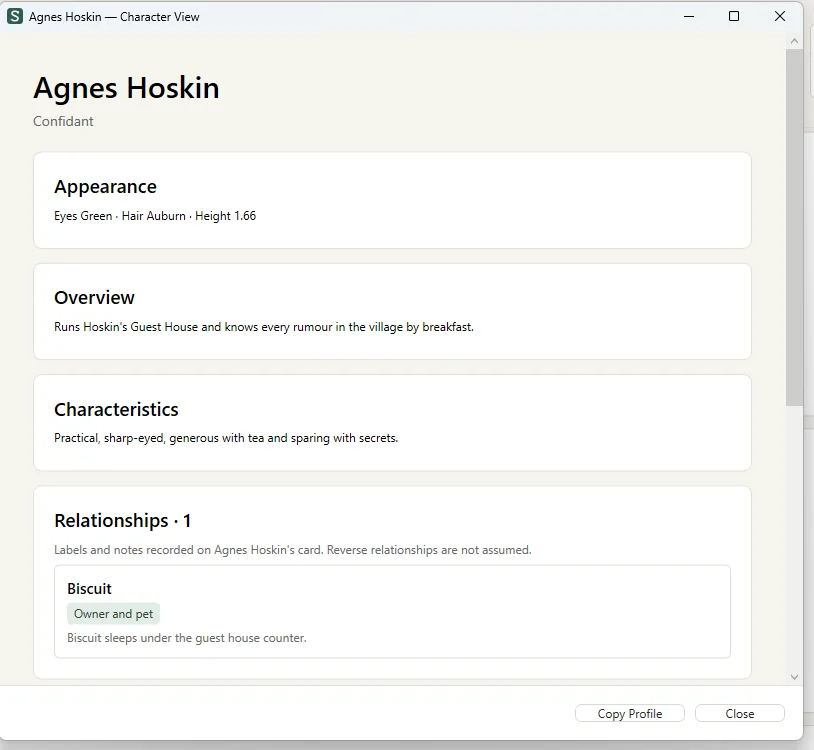
Three boxes of their own, because they are the three details an author goes back through a whole novel to find. They are free text and your own words are the right words: amber is an answer, and so is the grey of wet slate. Height takes a head shorter than Isla as readily as 1.66, because that is how a book says it.
They show wherever you meet the character — on the card, in the records beside the page while you write, in the Story Bible you hand to an editor. A cast already written comes in by the hundred: Export CSV writes the three columns, you fill them down in a spreadsheet, and Import Characters reads them back.
Story threads
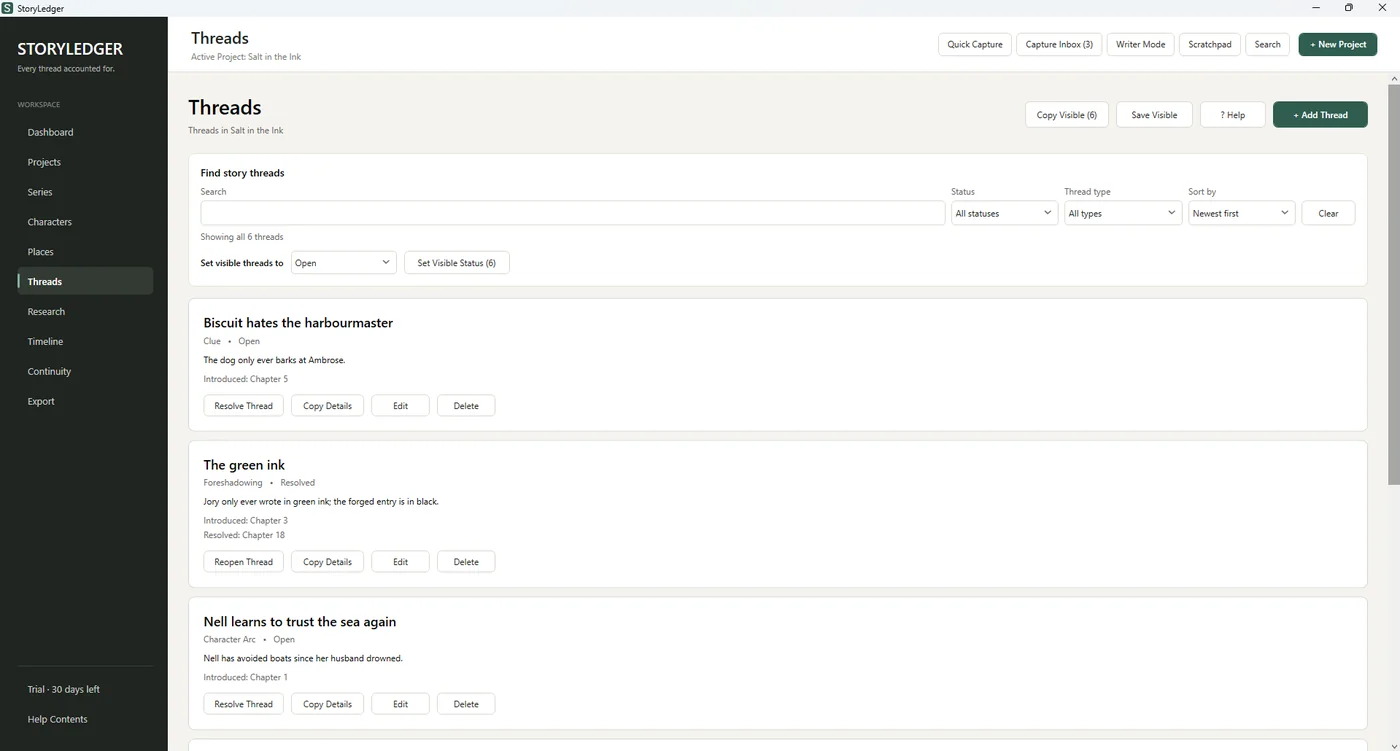
Mysteries, clues, secrets, promises and character arcs: where each one was introduced and where it pays off. Open threads stay on your dashboard until you resolve them, so nothing you set up is left dangling.
Timeline
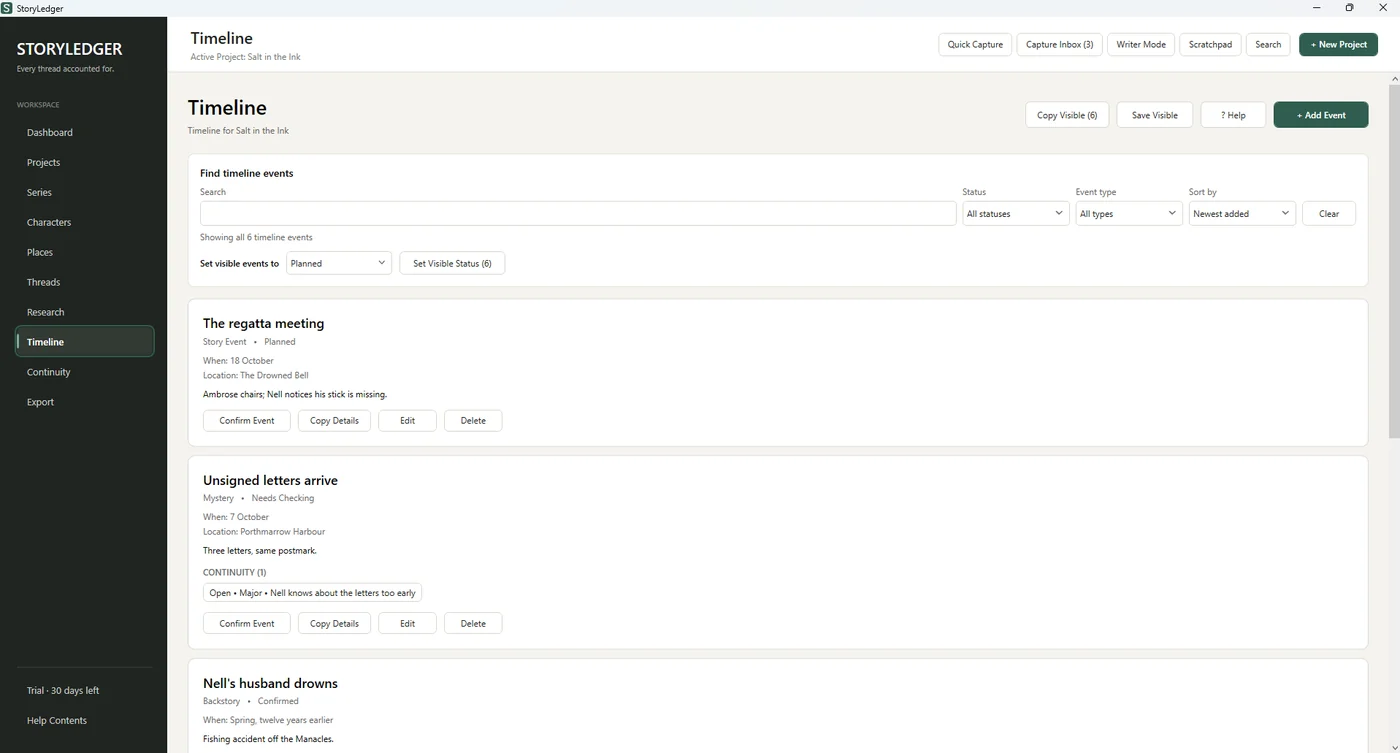
Story events, backstory and historical dates, each marked Planned, Confirmed or Needs Checking. The dates that trip up a mystery plot are exactly the ones worth writing down.
Places and research
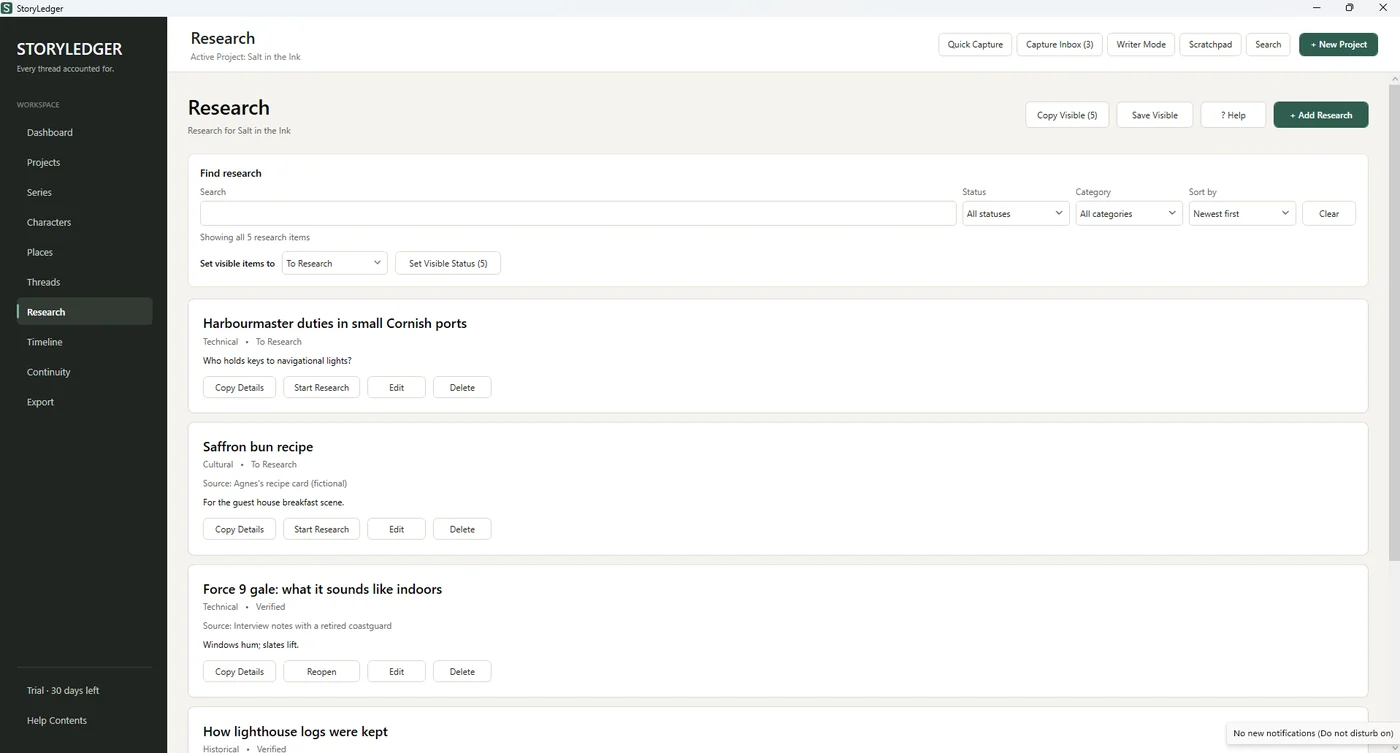
Settings with the details that must stay fixed, and a research list with sources that open with a click, whether a website or a file on your computer. Track each item from To Research to Verified.
Capture without leaving your manuscript
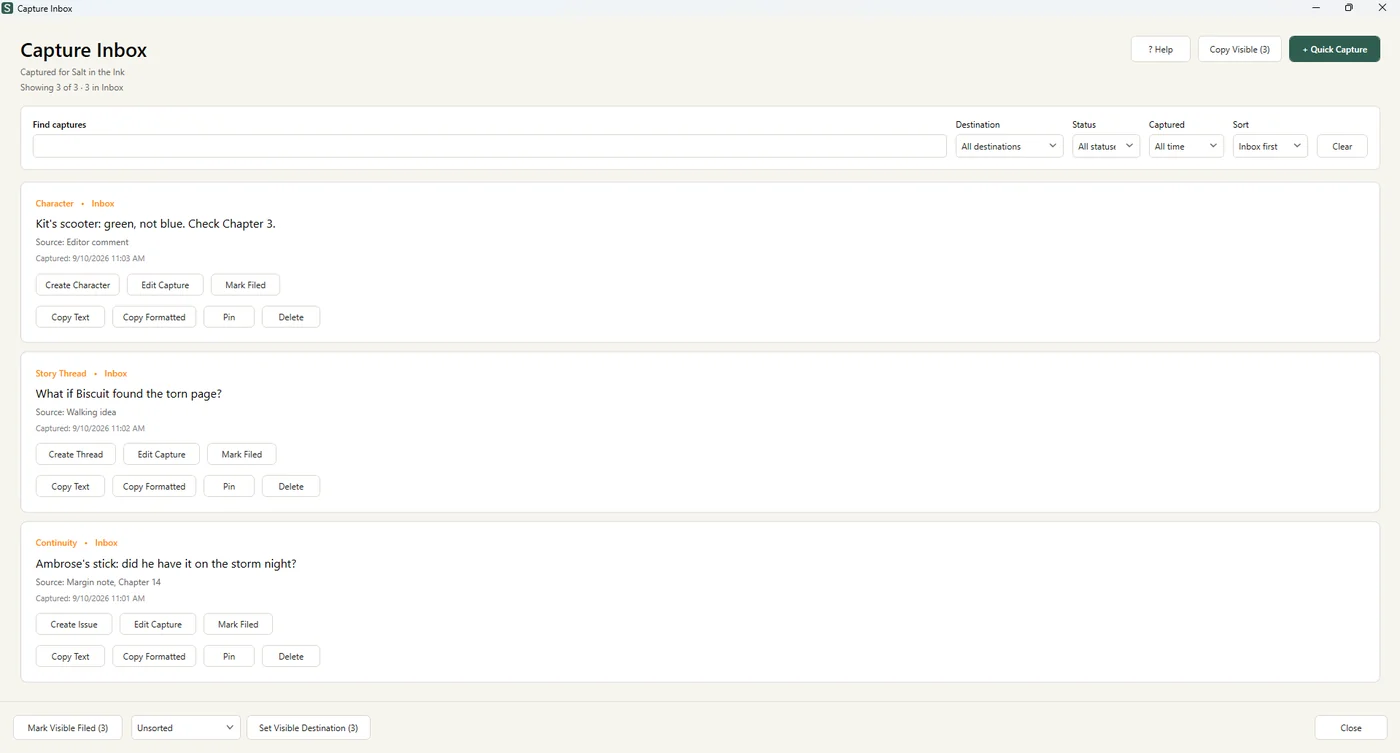
Select text in any app and press Ctrl+Shift+L. StoryLedger files it in a Capture Inbox with a note of where it came from, ready to sort into a character, thread or continuity issue later. Writer Mode tucks StoryLedger away while you write and keeps capture one keystroke away.
A Story Bible to hand over
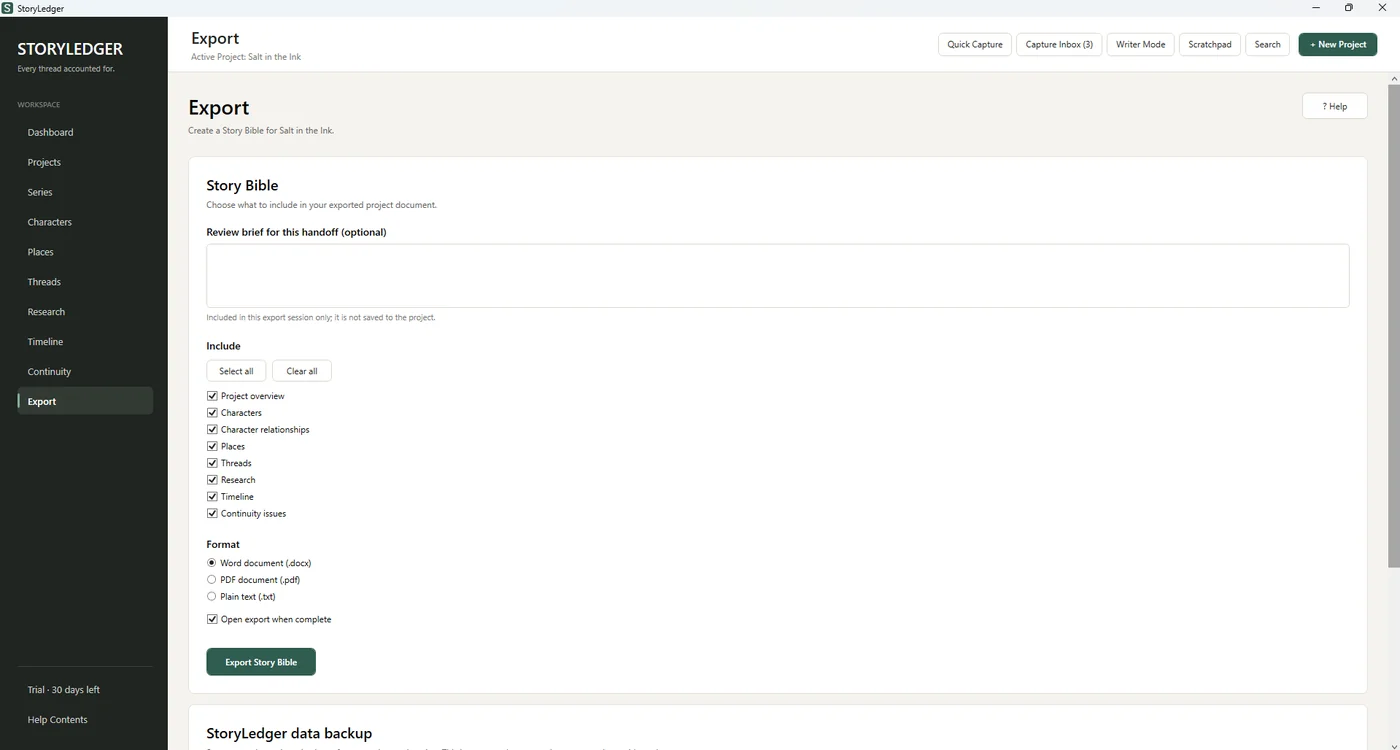
Export a clean Story Bible as a Word document, PDF or plain text, including only the sections you choose, with an optional brief for your editor, cover designer or co-writer.
Seeing the connections
See who was where — and when.
Your timeline tells you what happened. The roadmap shows you who was there. StoryLedger does not only remember the facts of your story — it shows you how they connect.
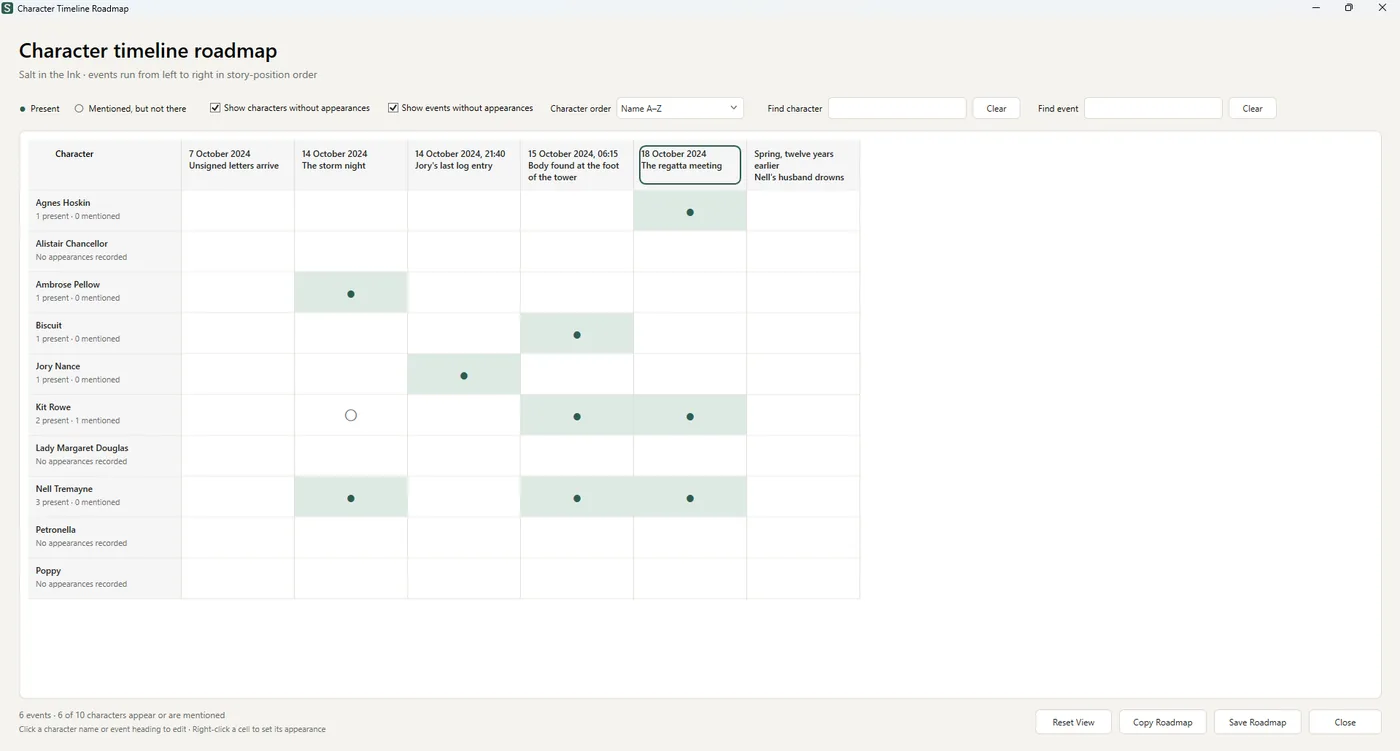
Present, or only mentioned?
A filled mark means the character was there. A hollow one means they were mentioned, but not present — a distinction that matters more than it sounds, because a character who knows about something they were never present for is exactly where continuity breaks.
Hover any character for their first and latest appearance across the whole story, or any event for who was there and who was only spoken of.
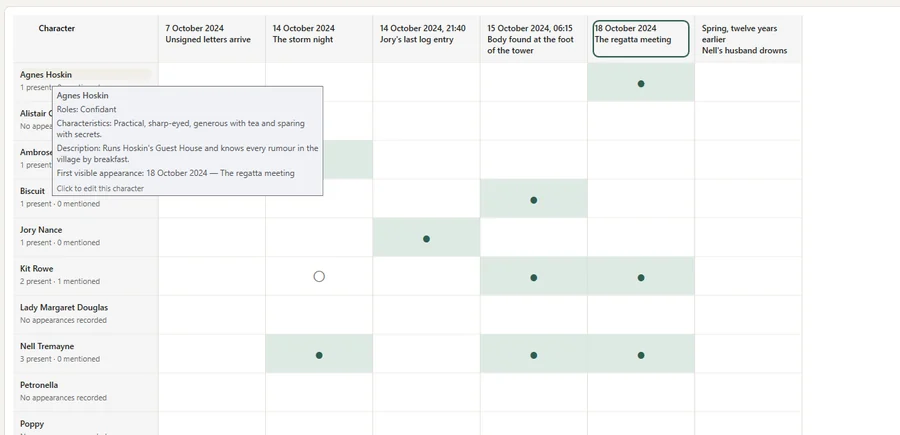
- Search and filter by character or by event as the cast grows
- Show characters with no appearances, to catch the ones you introduced and forgot
- Show events with no cast, to catch scenes nobody is actually in
- Reorder by name or by story position, then copy or save the whole roadmap
Progress
Know whether you are ahead.
Record your word count whenever you feel like it. StoryLedger works out the only number that matters: how many words a day it takes to reach your target from where you are now.
Set your own ceiling as well — “never more than 500 a day” is a better rule than most writing advice. When the plan stops fitting inside it, StoryLedger says so plainly and gives you both ways out with the arithmetic already done: write more per day, or move the date.
It also shows the pace you have actually been keeping over the last fortnight, and when you would finish at that pace. If you are ahead, it tells you that you are ahead. That turns out to be the most useful sentence on the screen.
- No streaks, no chains, and nothing turns red
- A writer who has missed a week gets an honest number, not a telling-off
- The same headline appears on your dashboard, so you see it without going looking
- Works per book, so a series can be totalled later
Built for
Anyone who has to keep a story straight.
Novelists
Book six remembers book one
A series, or standalones that share a cast — the problem is the same. Group books together and keep each one moving through its stages, from Planning to ARC, Scheduled and Published, with draft, ARC and release dates at a glance.
Copy-editors & proofreaders
A ledger you can hand back
Log every inconsistency as you read, with severity and the exact search text, then export the list for the author. Clearer than forty margin comments.
Beta readers & co-writers
One source of truth
A shared Story Bible export means everyone checks the same facts, instead of three versions of the heroine’s birthday.
For editors
The style sheet, made searchable.
If you copy-edit, line edit or proofread fiction, you already build a style sheet for every manuscript: names and their spellings, hyphenation, ages and dates, who has which scar, which way the dog’s ear flops.
It usually lives in a Word file that has become unreadable by chapter twenty. StoryLedger holds the same information as records you can search, filter and sort — one library per client, kept entirely separate from every other. Log each inconsistency as you read, give it a severity and the exact phrase to search for, and export the lot as a clean consistency report to hand back with your edit.
- A separate project per manuscript, so one author’s world never leaks into another’s
- Consistency checks across a whole series, not only the book on your desk
- Every issue carries its own search text, so the author finds the passage in seconds
- Export to Word, PDF or plain text as a record of what you found and what was fixed
- Nothing leaves your computer: no account, no cloud, no client work uploaded anywhere
A working editor? Write to me and I will send you a licence — free, permanent and with no conditions — in exchange for telling me what an editor needs that an author never thought to build. hello@blurbcraftstudio.com
Your work stays yours
Private by design.
- No AI, anywhere in it. StoryLedger does not write for you, suggest plot, rewrite a sentence, summarise a chapter or score your characters. Everything in your library is there because you put it there.
- Your library lives on your own computer. No account, no cloud, no subscription.
- Your manuscript stays yours. Write at the Desk and it lives in your own library; write somewhere else and StoryLedger only opens a file when you hand it one, read-only. Nothing you write is sent anywhere or used to train anything.
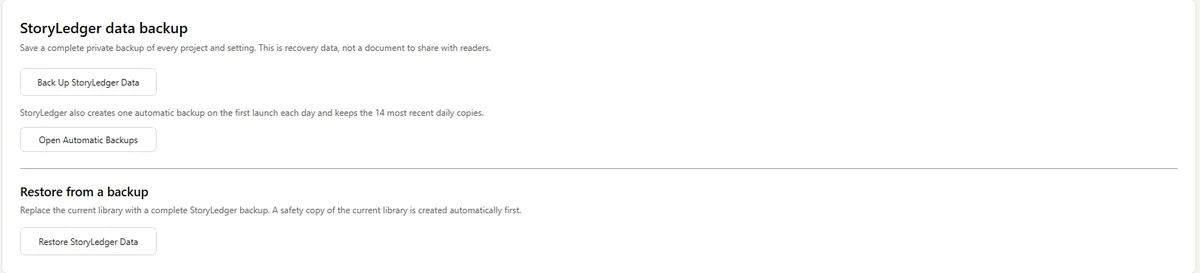
- An automatic backup every day, keeping the latest fourteen, plus one-click backups to anywhere you choose.
- Updates install themselves without touching your library.
One price, yours to keep
Try everything free for 30 days.
Then buy it once. No subscription, no renewals.
StoryLedger
Early Access to the full app, for everyone who joins before version 1.0.
R499
about US$31 · R649 from version 1.0
- Every feature, unlimited books and series
- Personal licence key, works offline
- Automatic updates included
- Made and supported by one author in Cape Town
Getting started
Up and running in five minutes.
Download and install
Run StoryLedger-win-Setup.exe. If Windows shows “Windows protected your PC”, click More info then Run anyway. StoryLedger opens by itself when it is ready.
Start your first project
Add a book, then your characters, places and threads as you go. Nothing needs to be filled in all at once.
Use it for 30 days
Every feature, no limits. The sidebar shows how many days are left.
Buy and activate
Your licence key arrives by email. Paste it into StoryLedger once, and it is licensed to you for good.
Questions
Before you download.
Does StoryLedger run on a Mac?
Not yet. StoryLedger is a Windows app for now (Windows 10 and 11). If you are on a Mac and would like it, email me: enough requests and it moves up the list.
Windows says “Windows protected your PC”. Is that safe?
Yes. Windows shows that warning for new apps from independent developers until they have built up a download history. Click More info, then Run anyway. The installer comes straight from StoryLedger’s official release page and contains nothing but the app.
Does StoryLedger use AI?
No. There is no AI in StoryLedger. It does not write for you, suggest plot, rewrite a sentence, summarise a chapter or score your characters. Everything in your library is there because you typed it, and the app’s only job is to hand it back at the moment you need it. Nothing you record is sent anywhere, analysed, or used to train any system. For completeness: I use AI tools to help write the code, as a great deal of software now is. None of it is in the app, and none of it touches your writing.
Does StoryLedger read or upload my manuscript?
Nothing you write is ever uploaded, wherever you write it. Where the manuscript itself lives is up to you. Write at the Desk and your chapters and scenes are kept in your own StoryLedger library, on your own computer, alongside everything else. Write in Word or Scrivener instead and StoryLedger does not go looking for that file at all — the only time it opens a .docx is when you choose Preview structure and hand it one yourself, and it opens that copy read-only without changing it. Either way, nothing is sent anywhere, analysed, or used to train any system. The only time StoryLedger goes online is to check whether a newer version is available.
What happens when the free trial ends?
StoryLedger asks for a licence key before opening your library. Your work is never held hostage: the same window always offers Back up my data, so you can keep a complete copy of everything whether you buy or not.
How do I get my licence key?
Buy through the secure Paystack page. I email your personal licence key within 24 hours, usually much sooner. Paste it into StoryLedger once and you are done. It works offline and is yours to keep.
Do I pay for updates?
No. Updates download and install themselves, and every update during Early Access and version 1 is included in your licence.
Can I pay from outside South Africa?
Yes. The price is charged in rand through Paystack and any international card works; your bank converts it automatically, which comes to about US$31.
Does StoryLedger track my word count?
Yes. The Progress screen keeps a record of your manuscript's word count and works out how many words a day you need to reach your target by your target draft date. Set your own daily ceiling and it tells you when the plan has stopped fitting, and what would fix it. It also shows the pace you have really been keeping and when you would finish at that pace. You type the number in: Progress never goes looking at your files. The Desk keeps its own running count while you write, and that count stays separate from Progress until you enter it yourself.
I find it hard to read the screen. Can I make the text bigger?
Yes. The writing page at the Desk zooms from 50% to 400% — with Ctrl and the plus or minus keys, Ctrl and the mouse wheel, or the control at the foot of the window. Ctrl and 0 puts it back to normal. The page grows along with the words rather than simply magnifying them, so the line stays a readable length and there is nothing to scroll sideways. Your choice is remembered in every book, so you set it once and it is there the next time you open the app. It changes what is drawn on screen and nothing else: your manuscript, its formatting and the file that comes out of Export to Word are untouched. Full screen (F11) clears everything else out of the way, which helps at the larger sizes. If there is something else that would make StoryLedger easier for you to use, write to me at hello@blurbcraftstudio.com — I would rather hear it than guess.
Can I use StoryLedger as a character bible?
Yes — that is most of what it is. Every character has roles, a description, characteristics, dates, relationships, and three boxes of their own for Eyes, Hair and Height: the details authors most often go back through a whole novel to find. They are free text, so amber is an answer and so is the grey of wet slate, and height takes a head shorter than Isla as readily as a number. Ages lays the whole cast against every year of the book. All of it comes out in the Story Bible export, and all of it stays on your computer.
Can I use StoryLedger as an editorial style sheet?
Yes, and it is one of the things it does best. Create a project for each manuscript you are working on and record the names, spellings, ages, dates and physical details you would normally keep in a style sheet — then search and filter them instead of scrolling a Word file. Log each inconsistency as you read, with the exact phrase to search for, and export the list as a consistency report for the author. Every client’s work stays in its own project, on your own computer.
Do I have to write in StoryLedger now?
No. The Desk is there if you want it and ignorable if you do not. Everything else in StoryLedger works exactly as it did whether you draft in Word, in Scrivener, in Google Docs or on paper — the characters, threads, timeline and continuity ledger have never needed to see your manuscript and still do not.
I am already halfway through a book. Can I move it into the Desk?
Yes, if your chapters and scenes are marked with Word headings. Choose Preview structure, point it at your .docx, and it shows you what it makes of the file — which headings it read as chapters, which as scenes, and anything it could not place — before a single word is imported. Your original is opened read-only and is never altered. If the structure does not look right, close it, fix the headings and look again.
Does it work for standalone novels, or only series?
Both. A series is simply several projects grouped together. Plenty of writers use it for a single long novel, or for standalones that share a cast and a setting, where the same facts still have to hold from one book to the next.
Is my work backed up?
StoryLedger makes an automatic backup the first time you open it each day and keeps the fourteen most recent. You can also save a complete backup anywhere you like, such as a USB stick or cloud folder, with one click.
Keep every thread accounted for.
Thirty days, every feature, nothing to lose but the continuity notes in your next review.
Also from this desk: editorial reviews and blurbs for independent authors, and the novels that started all this.